
New feature · 25 Aug 2026
Workbench Launcher
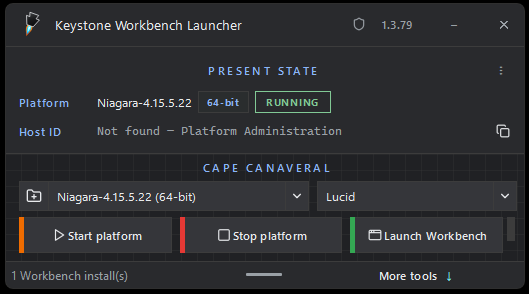
A regular Workbench launcher: pick an install, start or stop the platform, open Workbench. More tools sit under a hint. The extra is Keystone dark mode — three themes — and a new loading splash.
What it does
It finds the Workbench installs on the PC. You pick one, pick a theme, and launch. Start and stop the Windows Niagara service from the pad. Host ID is there if you need it for a license.
Launch Workbench drops the signed theme jars into that install’s
modules folder and starts Workbench with the theme you
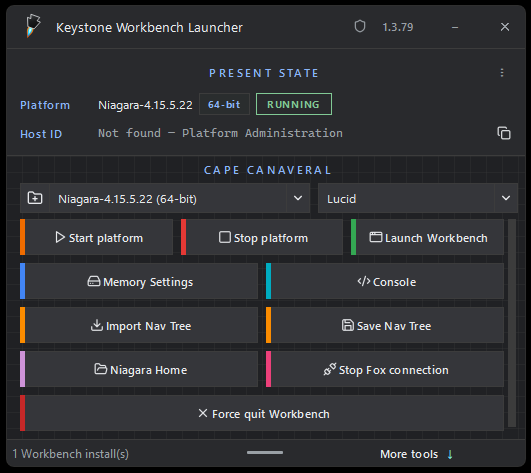
picked. Drag the pad taller, or use More tools, for the rest of
the buttons.
On the pad
- Start platform — Start the Windows Niagara service for this install. If another version is running, it is stopped first.
- Stop platform — Stop the Niagara service.
- Launch Workbench — Start Workbench for this install. Copies the Keystone theme jars when you pick a Keystone theme.
- Memory Settings — Set Workbench heap.
- Console — Open this install’s Niagara console.
- Import Nav Tree — Copy a nav tree from another install on this PC.
- Save Nav Tree — Write this Workbench’s live nav tree to this install’s nav tree file. Needs Keystone Pro Tools in that Workbench.
- Niagara Home — Open this install’s home folder.
- Stop Fox connection — Cut a Fox or platform wait when the host is not answering.
- Force quit Workbench — End a stuck Workbench. Unsaved work is lost.
Three dark themes
- Keystone — our icons (Lucide plus an original fox).
- Keystone Lucid — the same dark chrome with Lucid icons.
- Keystone Zebra — the same dark chrome with the install’s Zebra icons.
Niagara 4.7 through 4.15. Stock Lucid and Zebra stay in the dropdown if you want them back.
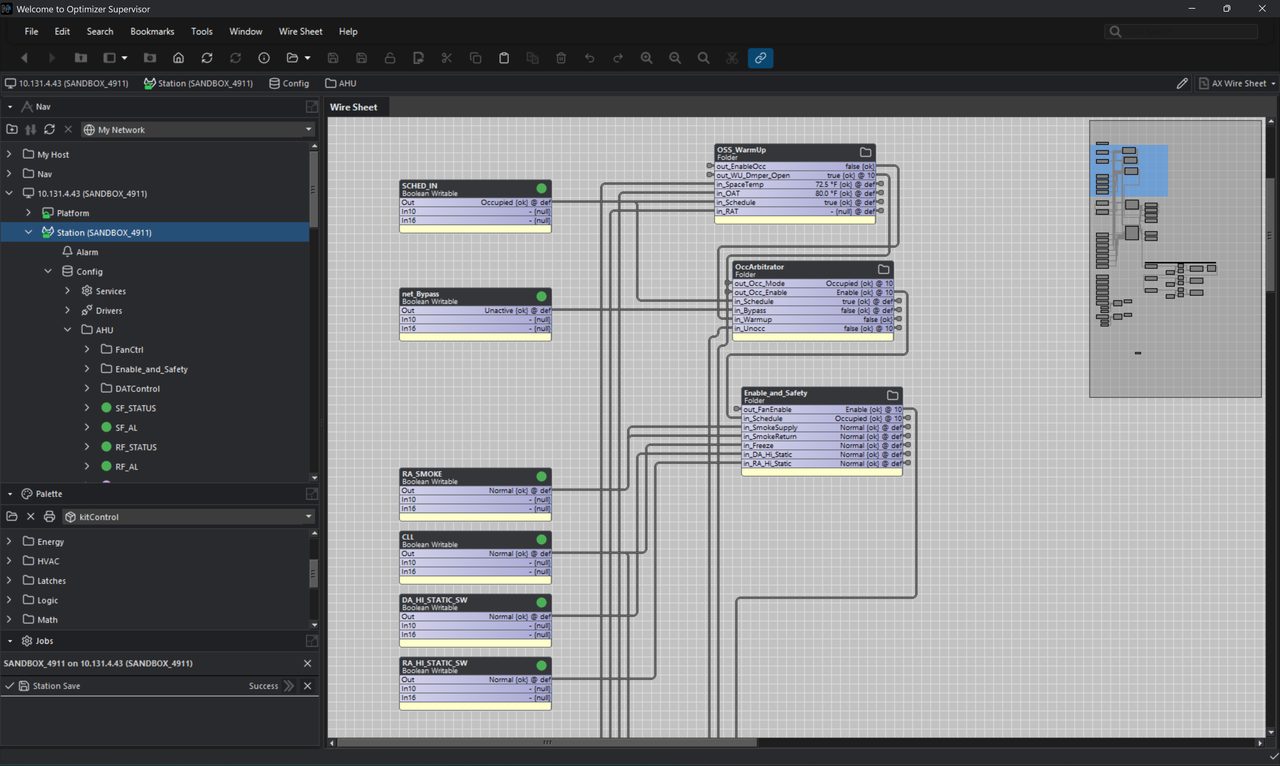
Niagara does not make a thorough dark mode easy. We went as far as the theme system lets us, and we are still working on it. If something is really in the way, let us know.
Loading splash
Launch WB can put a Keystone loading splash in that install’s
etc folder. Writing there needs administrator once.
If the splash is already ours, we leave it alone. If Windows
blocks the copy, you can restart as administrator or skip it —
Workbench still opens. There is a “Don’t show this again”
checkbox.
How to use it
- Download the setup from Downloads.
- Run the installer and accept the launcher license.
- Pick a Workbench install and a theme.
- Launch WB. Restart as administrator only if you want the splash copied in.